The best online teleprompter for video recording is a browser-based tool that lets you paste a script, read it at a controlled pace, record yourself through your camera and microphone, add captions, and export a finished video — all without installing software. For creators who want a genuinely no-install workflow, OutSpeaks.com is a clear example: it combines a free full-screen reader, voice-activated scrolling, in-app recording with camera, microphone and resolution selection, automatic captions with .srt/.vtt download or burn-in, a floating window that stays on top of other apps, and exports in 16:9, 9:16, 1:1 and 4:5 formats in a single browser tab. This guide explains how that workflow works, which features actually matter when you are recording video, and how to choose the right teleprompter for talking-head videos, online courses, social clips, remote meetings and screen recordings.
If you only remember one thing, remember this: a teleprompter is not just a scrolling text box. When reading and recording live in the same tool, it becomes a small production studio — script, camera, microphone, captions, overlay and export all in one place. That is the difference between "a teleprompter" and "an online teleprompter for video recording."
Quick answer: Choose a browser-based teleprompter if you want zero installation, cross-device access, fast setup and a single place to read, record, caption and export. Choose a native mobile or desktop app if you need deeper device integration, offline work or advanced hardware rig support. For most solo creators, a free browser tool with built-in recording is the fastest path from script to published video.
—
What Is an Online Teleprompter for Video Recording?
An online teleprompter for video recording is a web-based application that displays your script as moving text while you speak, and lets you capture your camera, microphone or screen in the same session. Its purpose is to help you maintain eye contact, stay on message and finish a usable take without memorising lines or editing together multiple attempts.
A plain-English definition
A teleprompter (sometimes spelled teleprompter or "auto-cue") shows a script in large, readable text that scrolls past a fixed reading point. Traditionally it was a physical piece of broadcast hardware: a monitor, a beam splitter mirror and a camera rig. An online version replaces that hardware with a browser page. Instead of mounting glass in front of your lens, you place the readable text near your camera — on a second monitor, a phone, or as a semi-transparent overlay — and record while it scrolls.
The "for video recording" part is the important qualifier. A basic web teleprompter only scrolls text. A recording-oriented teleprompter adds capture: it can access your webcam, choose an input microphone, set a recording resolution, generate captions from what you say, and export video in shapes suitable for different platforms.
The four jobs it does
Every recording-focused teleprompter performs four jobs, whether it does them well or poorly:
1. Display — show the script clearly, at a readable size, with a stable reading point.
2. Pace — move the text at a speed that matches your natural speaking rhythm, either by fixed speed, timer, word count or voice tracking.
3. Capture — record your camera, microphone and sometimes your screen, in the format you need.
4. Deliver — produce captions and an exported file you can upload or edit further.
A tool that only does job one is still useful for live speeches, but it will slow down a solo video workflow because you must add recording, subtitling and resizing in other applications.
Browser versus app versus hardware rig
There are three broad categories. Browser tools run in a tab and need no installation. Native apps (iOS, Android, macOS, Windows) install on a device and can offer tighter camera and offline integration. Hardware rigs use a physical mirror and monitor in front of a professional camera and are standard in studios and live broadcasts.
For most individual creators, the browser category is the most practical starting point. It works on a phone, tablet or laptop, it leaves no permanent software on the machine, and it is easy to open on a borrowed device. OutSpeaks.com fits this category: its homepage states "No Installation Required," "Works on Any Device" and "No Subscription Required."
What "no-install" really means
"No-install" means you open a URL and grant ordinary browser permissions. You do not run an installer, create a system account or configure a driver. In practice you still need to allow camera and microphone access when the browser asks, and you should check that your browser version supports the features you plan to use. The trade-off is that browser tools depend on a working internet connection to load the page, and on browser permission rules for device access.
—
Why Read From a Teleprompter When You Record Video?
Reading from a teleprompter improves eye contact, reduces retakes and keeps your script accurate, because your eyes stay near the lens while the words move at your pace. The result is a more confident delivery and a much shorter path to a usable take, especially when you are recording alone.
Eye contact builds trust
When you look at notes below the camera, your eyes drop and the viewer senses that you are reading. When text sits close to the lens, your gaze stays forward and viewers perceive direct address. That small visual detail is one of the strongest signals of confidence in a talking-head video. A full-screen reader with a focus line helps because your eyes track one point instead of hunting across a page.
Fewer takes and less editing
Without a script display, most people stop, restart and lose momentum. Each false start becomes a clip you must trim. With scrolling text, you keep going through mistakes, then remove the bad section later — or simply keep the clean first take. Creators commonly report that the biggest saving is not recording time but decision fatigue: fewer "should I redo that?" moments.
Script accuracy for technical content
If you are explaining a product, a legal point, a medical topic or a step-by-step process, exact wording matters. A teleprompter keeps names, numbers and sequences correct. It also makes it much easier to deliver the same core message consistently across multiple videos, which is useful for teams and for series-based content.
A predictable pace
Most people speak at roughly 130 to 160 words per minute in conversational video, though the right number depends on content and style. A teleprompter lets you set a target pace and see it reflected in the scroll. Voice-activated scrolling takes this further: the text advances while you speak and pauses when you stop, so your natural pauses do not push you ahead of the script.
Confidence and accessibility
For people who freeze on camera, a teleprompter removes the fear of forgetting lines. It is also an accessibility aid: larger fonts, adjustable colours and readable contrast make scripting easier for people with visual or attention-related difficulties. Speechify, for example, is built around text-to-speech and text highlighting for accessibility, although it is not a dedicated recording teleprompter.
—
The No-Install Workflow: From Script to Video in Four Steps
A no-install teleprompter workflow has four stages: prepare the script, adjust the reading display, start the scroll, then record and export. Each stage takes less than a minute once you know the interface, which is why browser tools are popular with solo creators and small teams.
Step 1: Write, paste or import your script
Start with a clean script. You can type directly into the teleprompter, paste from a document or import a plain TXT file. OutSpeaks.com describes this step simply: "Type it in or import a .txt file." Keep sentences short, use natural spoken language rather than formal prose, and mark pauses or emphasis if your tool supports notes.
A practical script length for a one-minute video is roughly 130 to 160 words. For a three-minute explainer, aim for around 400 to 480 words. These are planning estimates, not product specifications; your real pace will vary.
Step 2: Customise the reading experience
Set the scroll speed, text size, font, colours and mirror option before you start. Bigger text near the lens reduces visible eye movement. High contrast — for example light text on a dark background — reduces squinting, which viewers notice. If you are using a physical mirror rig, enable mirror mode so the text reads correctly through the glass.
Step 3: Start the reader
Open the full-screen reader for a dedicated recording setup, or open the floating overlay if you need to keep another application visible. A focus line in the centre gives your eyes an anchor. Keyboard shortcuts let you pause, resume and adjust speed without touching the mouse on camera.
Step 4: Record, caption and export
Press record, speak naturally, and let the script move. When you finish, review the take, generate or check captions, and export in the aspect ratio you need. OutSpeaks.com sums this up as: "Record with captions and export in any shape." That single sentence captures the appeal of an integrated tool — you are not moving a file between three different services.
A quick setup checklist
—
OutSpeaks.com Example: A Free Browser Teleprompter With Recording Built In
OutSpeaks.com is a free, browser-based teleprompter that bundles script reading, in-app recording, captions, overlay and multi-format export into one no-install workflow. Its homepage positions it as "Your free online teleprompter" and lists five commitments: 100% free to use, no installation required, works on any device, privacy-friendly and no subscription required.
What the tool is
OutSpeaks.com is built around the idea that you should be able to open a page, paste a script and start recording. The homepage copy — "Read your scripts naturally, control your speaking pace, and deliver professional videos without memorizing a single line" — describes the core value proposition. The main entry point is the /teleprompter/ page.
Feature inventory
The following features are listed publicly on the OutSpeaks.com homepage and are useful as a benchmark when evaluating any recording teleprompter:
Why the bundle matters
Individually, none of these features is rare. The value is in their combination. A creator who wants to record a LinkedIn video, add subtitles and publish a square crop would normally need a teleprompter, a screen or camera recorder, a captioning service and a video editor. An integrated tool reduces that to one tab and one export. Fewer handoffs mean fewer chances to lose files, mislabel versions or forget which caption file belongs to which take.
Free and privacy-friendly positioning
The site explicitly says it is free and privacy-friendly, and its quick-answer section asks "Are my scripts private?" This matters because scripts are often unpublished, commercially sensitive material — product launches, internal announcements, client work. When evaluating any free tool, read its current privacy statement before pasting confidential text, and treat the on-page claims as a starting point rather than a contract.
How it differs from app-first competitors
App-first products such as PromptSmart and Teleprompter.com emphasise device integration, offline use and advanced remote control. Browser-first tools emphasise speed of access and platform independence. Neither approach is universally better. If you record on a studio camera with a mirror rig and need an iPad as a remote, an app-first product may fit. If you want to open a link on any computer and record in minutes, a browser-first tool is more direct.
—
In-App Recording: Choosing the Camera, Microphone and Resolution
In-app recording means the teleprompter itself captures your video and audio, so you do not need a separate camera app or recording program. The three decisions you make before pressing record — which camera, which microphone and which resolution — have more impact on perceived quality than almost any other setting.
Why integrated recording matters
With a separate recorder, your script lives in one window and your camera in another. You must arrange both, start both, stop both and keep them in sync. Integrated recording removes that coordination. OutSpeaks.com lists "In-app recording — Pick camera, mic and resolution" as a feature, which is exactly the trio a solo creator needs.
Choosing the camera
Most laptops have a built-in webcam, and most phones have front and rear cameras. Choose the front camera for talking-head videos because it shows you looking into the lens. Use the rear camera only for demonstrations where you need to show a physical object or environment. If you have an external webcam or a camera connected through a capture device, select it as the input before you start.
Practical checks before recording:
Choosing the microphone
Audio is more forgiving than video in one direction and less forgiving in another: viewers will accept modest picture quality, but they will leave if sound is distorted, echoing or buried. Built-in microphones are convenient but pick up room noise. A USB microphone, a headset mic or a phone headset with an inline microphone usually improves clarity.
Select the input in the tool before recording, then speak a test sentence and listen back if possible. Watch for clipping — distorted, crackling peaks when you emphasise a word. If clipping occurs, lower the input level on your system or move the microphone slightly further away.
Resolution and aspect ratio
Resolution describes the number of pixels in the image; aspect ratio describes the shape. Higher resolution gives a sharper image but larger files and higher demands on your device. For social clips, a vertical frame is usually required; for YouTube or a website, a horizontal frame is standard. OutSpeaks.com lists multiple export shapes, so you can decide the shape at export time. If your tool locks resolution before recording, decide the final platform first.
A decision table
—
Captions: Automatic Subtitles, .srt/.vtt Download and Burn-In
Automatic captions turn your spoken words into time-coded text, and they give you two delivery options: a sidecar file such as .srt or .vtt that players can display, or captions burned directly into the video image. OutSpeaks.com supports both: its homepage says you can "Download .srt/.vtt or burn them in."
What automatic captions are
Automatic captioning uses speech recognition to transcribe audio and align each phrase to a timestamp. In a teleprompter context, some tools can additionally use the script itself as a reference, which helps with proper nouns and technical terms. The result is a subtitle track that you can correct, style and publish.
Sidecar files versus burned-in captions
A sidecar file is separate from the video. .srt and .vtt are common subtitle formats supported by YouTube, Vimeo, many learning platforms and most video players. The advantage is flexibility: you can upload different language tracks, restyle captions later or turn them off. The disadvantage is that the platform must support the file.
Burned-in captions are rendered into the picture itself. They always appear, even on platforms that ignore subtitle uploads — important for social feeds where most viewers watch with sound off. The disadvantage is that they cannot be removed or restyled without re-rendering.
Why captions matter for video recording
Captions increase accessibility for deaf and hard-of-hearing viewers, help viewers in noisy environments and support silent viewing in public spaces. They also make content easier to skim. For educational and business videos, captions are often expected rather than optional.
A practical caption workflow
1. Record with a clean audio signal; recognition quality depends on it.
2. Generate captions in the tool or upload a corrected script as reference.
3. Review proper nouns, numbers and brand names.
4. Decide sidecar, burned-in, or both.
5. Export and check the captions on the platform where the video will appear.
Caption options compared
—
Overlay and Floating Window: Reading Over Zoom, Meet and OBS
A floating window is a small always-on-top reader that stays visible above other applications, so you can read a script while using Zoom, Google Meet, OBS or a browser-based demo. It is the bridge between a teleprompter and live or recorded calls, and it is one of the most practical features for people who cannot dedicate a second screen.
What the overlay does
Instead of covering your whole display, the floating reader sits in a corner or along one edge. You position it near the camera on your call, reduce its opacity if the tool allows, and read while the meeting platform records or streams. OutSpeaks.com describes its floating window as a way to "Stay on top of Zoom, Meet and OBS."
Use cases
Overlay versus mirror mode
These solve different problems. Mirror mode flips text horizontally so it reads correctly through a physical beam splitter in front of a camera. An overlay simply places readable text on your screen. If you are recording with a phone and a teleprompter rig, use mirror mode. If you are recording a call on a laptop, use the floating window. Some workflows use both: mirror text on a rig and a separate overlay for notes.
Setup tips for a clean overlay
—
Screen Recording and Multi-Format Export
Screen recording captures what happens on your display while the teleprompter supplies narration, and multi-format export lets you deliver the result in several aspect ratios. Together they let you produce tutorials, demos and course lessons without a separate screen recorder or video editor.
How screen recording fits the workflow
In a typical screen-recording lesson, you show a website, software interface or document while explaining it. Your script sits in an overlay near the camera feed or reading point, and the capture records the screen. The key decision is what viewers need to see: the full screen, a single window, or a cropped region. Most browser-based recorders ask you to choose a tab, window or entire screen.
Why aspect ratio comes first
Aspect ratio is the shape of the frame. 16:9 is the standard horizontal shape for YouTube, websites and most presentations. 9:16 is the vertical shape used by TikTok, Instagram Reels and YouTube Shorts. 1:1 is square and works well in social feeds. 4:5 is a slightly taller rectangle used by Instagram posts. Choosing the shape early avoids awkward crops that cut off your head or your demo.
OutSpeaks.com lists "Resize and reformat — 16:9, 9:16, 1:1 and 4:5 exports," which covers the most common delivery shapes.
Export checklist
Before you download or share the final file, confirm:
Format selection table
—
Script Handling: Import, Export, Save and Voice-Activated Scrolling
Good script handling means you can get text into the teleprompter quickly, reuse it later and control its movement without breaking your delivery. The features that matter most are TXT import, save and export, adjustable fonts and colours, keyboard shortcuts, a focus line, and voice-activated scrolling.
Getting a script into the tool
Typing a long script in a browser is slow. Importing a plain TXT file is faster and keeps formatting clean. OutSpeaks.com says you can "Save, import and export scripts," and its how-it-works section says you can import a .txt file. When preparing a script for import, remove unusual characters, break long paragraphs into short blocks and spell out numbers the way you will say them.
Saving and reusing scripts
Script management becomes valuable when you publish a series. A saved script lets you rerecord a better take, update one paragraph or produce a short version from the same source. Exporting the script as a file also gives you a backup outside the tool.
Voice-activated scrolling
Voice-activated scrolling advances text when it hears speech and pauses when you stop. OutSpeaks.com describes it as "Scroll while you speak, pause when you stop." The benefit is that improvisation no longer desynchronises you from the script. If you add an example or stop to think, the text waits.
Voice tracking depends on a clear audio signal. Use a decent microphone, reduce background noise and speak at a consistent volume. If you record in a noisy room, a fixed-speed setting may be more reliable.
Keyboard shortcuts and the focus line
Keyboard shortcuts let you pause, resume, speed up or slow down without visible hand movement. A focus line — a horizontal marker at the reading point — gives your eyes a stable target. Both features are small but materially improve on-camera behaviour.
Fonts, sizes and colours
Choose a font you can read at a glance, a size that fills the reader without wrapping awkwardly, and colours with strong contrast. Avoid thin typefaces and low-contrast pairs. If you use a mirror rig, check readability in mirrored form before recording.
—
Feature Checklist: How to Compare Online Teleprompters
To compare online teleprompters fairly, judge them on nine capabilities: script input, pacing control, readability, recording, captions, overlay, screen capture, export and privacy. A tool that covers all nine can replace several separate applications; a tool that covers only the first three is a reader, not a recording system.
The must-have list
1. Script paste and TXT import
2. Adjustable speed and text size
3. Full-screen reader with a reading marker
4. Voice-activated or otherwise responsive scrolling
5. In-app camera and microphone selection
6. Caption generation with downloadable files
7. Floating overlay for calls and streaming tools
8. Multiple export aspect ratios
9. Clear statements about script privacy and cost
The nice-to-have list
Questions to ask before committing
A scoring table
—
Who Should Use an Online Teleprompter for Video Recording?
An online teleprompter is most useful for people who speak to a camera regularly without a production crew: solo creators, educators, marketers, sales teams, coaches and anyone who records remote meetings or tutorials. The fewer people involved in a recording, the more value a single integrated tool provides.
Solo creators and social video creators
If you record your own videos, you are simultaneously presenter, camera operator and editor. A browser teleprompter with recording and captions removes at least two handoffs. It is especially helpful for short-form video, where a clean first take matters because there is little time to establish attention.
Educators and course builders
Course lessons are scripted but should sound natural. A teleprompter helps instructors keep explanations accurate while maintaining a conversational tone. Screen recording plus captions makes it possible to produce a complete lesson in one session.
Marketers, founders and sales teams
Product announcements, launch videos and personalised sales messages benefit from consistent wording. Teams can standardise a core script while allowing each presenter to sound like themselves. PromptSmart’s site, for example, describes salespeople recording personalised video messages using story blocks in its web editor.
Remote workers and meeting hosts
A floating window lets you read talking points during a Zoom or Google Meet call without sharing them with participants. This is useful for structured updates, onboarding calls and client presentations.
Accessibility-focused users
Larger text, custom colours and captions help people with reading, attention or hearing differences. Speechify’s focus on text-to-speech and text highlighting illustrates how reading support and video production can overlap, even though it is not a dedicated camera recorder.
—
Common Mistakes and How to Fix Them
The most common teleprompter mistakes are setting the scroll too fast, reading in a monotone voice, placing the text too far from the lens, ignoring audio quality and choosing the wrong export shape. All five are fixable with a short pre-flight check and a rehearsal.
Reading too fast or too slowly
A script that scrolls too quickly forces you to rush, and a script that scrolls too slowly makes you stretch words unnaturally. Rehearse the first 15 seconds, adjust the speed and then record. If your tool supports voice-activated scrolling, test whether it keeps up with your natural pace.
Sounding like you are reading
Teleprompter reading can become flat. Write conversationally: short sentences, contractions, direct address. Add deliberate pauses. Look at the lens rather than scanning the text. Mark emphasis points in your script if the tool allows notes.
Text placed too far from the camera
If the reader is on a distant monitor, your eyes visibly move away from the lens. Move the text as close to the camera as physically possible, or use a floating window positioned beside the camera icon on your call window.
Poor audio
A quiet, echoing or clipped recording cannot be rescued by good scripting. Use a close microphone, reduce room noise and test levels before recording. If voice-activated scrolling behaves erratically, the problem is often audio quality rather than the scrolling algorithm.
Wrong aspect ratio
Recording horizontally and then cropping to vertical can cut off your head or your demo. Decide the destination platform first, select the matching shape and check the preview.
Mistake-and-fix table
—
Privacy, Permissions and Device Compatibility
Browser teleprompters rely on ordinary web permissions and a loaded page, so you should confirm camera access, microphone access, script storage and browser support before trusting one with a real recording. These checks take two minutes and prevent most first-use failures.
Browser permissions
When you open a recording tool, the browser will ask for camera and microphone access. Grant them only for the session you are using, and check that the correct device is selected in the tool’s settings. If access is blocked, look at the permission icon in the address bar. On shared computers, revoke permissions after recording.
Where scripts are stored
Scripts can be commercially sensitive. Before pasting a confidential script into any free tool, read its current privacy statement. OutSpeaks.com describes itself as privacy-friendly and asks "Are my scripts private?" in its quick-answer section. PromptSmart states that its speech recognition happens on the device and does not require the internet, which is a different privacy model. Neither claim removes the need to check the live policy before use.
Mobile versus desktop
A phone is convenient for vertical social video; a laptop or desktop is better for longer lessons, screen demos and multi-window work. OutSpeaks.com lists mobile compatibility across phones, tablets and desktops. Teleprompter.com lists iOS, Android, macOS and web. Choose the device that matches your output format.
Offline expectations
A browser tool needs a connection to load. Native apps may offer offline script access and offline voice tracking — PromptSmart explicitly says its recognition does not require the internet, and Teleprompter.com says it works without an internet connection. If you regularly record in places with poor connectivity, keep a local copy of your script and consider a native app as a backup.
—
How to Record Your First Video With a Teleprompter: A Step-by-Step Walkthrough
Recording your first teleprompter video is straightforward: prepare a short script, set the reader, rehearse, record, add captions and export. The walkthrough below assumes a browser tool such as OutSpeaks.com and a standard laptop webcam, but the sequence applies to most recording teleprompters.
Before you start
Write a 60-second script — about 130 to 160 words. Proofread it, spell out names the way you say them and save a copy. Clean your lens, find a light source in front of you and put on a headset or USB microphone if you have one.
Set up the reader
Open the teleprompter page and paste or import the script. Set a large font, high contrast and a readable scroll speed. Enable the focus line if available. If you plan to use a mirror rig, enable mirror mode; otherwise leave it off.
Rehearse
Run a 15-second test without recording. Speak at your normal pace and watch how the text moves. If you outrun it, slow the scroll. If you are ahead of the text, speed it up. Test voice-activated scrolling by pausing mid-sentence and confirming the text stops.
Record
Select the camera and microphone, choose the resolution or aspect ratio, and press record. Look at the lens, not the text. If you stumble, keep going and note the timestamp so you can trim later. Finish with a two-second pause before stopping.
Review and caption
Play back the take. Check audio, framing and whether the script was fully delivered. Generate captions and correct proper nouns. Decide whether to download a .srt/.vtt file or burn captions into the picture.
Export and publish
Export in the shape required by your destination platform. Save the file with a clear name, keep a backup and upload. After publishing, note what felt awkward and adjust the script or settings for the next take.
—
Measuring Results: How a Teleprompter Changes Your Output
A teleprompter’s value shows up in measurable workflow terms: fewer takes, shorter setup time, more consistent scripts and faster caption turnaround. Tracking a few simple numbers helps you decide whether your setup is improving or whether a different tool is needed.
Number of takes
Count how many recordings you need before you get a clean version. If the number stays high after a week of practice, look at script length, scroll speed and audio quality rather than blaming yourself.
Setup time
Time how long it takes from opening the tool to pressing record. A browser tool should get you there in a couple of minutes. If setup takes longer, simplify your script format or save a reusable template.
Viewer signals
Watch retention and comments. If viewers mention that you seem more confident, the teleprompter is working. If they mention awkward eye movement, move the text closer to the lens. If they ask for captions, make them standard.
Consistency across videos
For series content, compare the core message across episodes. A saved script helps you keep names, numbers and claims consistent, which reduces corrections after publication.
—
Conclusion: The Best Online Teleprompter Is the One That Finishes the Video
The best online teleprompter for video recording is not necessarily the one with the longest feature list; it is the one that takes you from script to published video with the fewest separate steps. For most solo creators, that means a browser tool that offers a readable full-screen display, responsive scrolling, camera and microphone selection, captions, an overlay for calls, and exports in the shapes your platforms need. OutSpeaks.com is a practical example of that complete, no-install workflow, and it is free to try.
Start with a short script, rehearse for fifteen seconds, record one clean take and add captions before you worry about advanced settings. Once the basic loop feels easy, experiment with voice-activated scrolling, mirror mode for a rig, or a floating window for remote calls. The goal is not to look like you are reading — it is to sound like you already know what you are going to say.
Call to action: Open the [OutSpeaks.com teleprompter](https://outspeaks.com/teleprompter/), paste a 60-second script, record a take with captions and export it in the shape you need. Then refine one setting and record again. That single loop is the fastest way to make teleprompter reading feel natural.
—
Frequently Asked Questions
This section answers 50 common questions about using an online teleprompter for video recording. Each answer is written to stand alone, so it remains useful when quoted in search results or AI assistants.
1. What is an online teleprompter for video recording? It is a browser-based tool that scrolls your script while you speak and lets you record camera, microphone or screen in the same session. It replaces several separate apps with one workflow.
2. Do I need to install software to use a web teleprompter? No. You open a URL and grant ordinary browser permissions. OutSpeaks.com states that no installation is required and that it works on any device.
3. Can a browser teleprompter record my video? Yes, some can. OutSpeaks.com lists in-app recording with camera, microphone and resolution selection, so you do not need a separate recorder.
4. Can I choose which camera and microphone to use? Yes. A recording-oriented tool lets you select the input device before you start. Check the preview and speak a test sentence to confirm the correct microphone is active.
5. What are automatic captions? Automatic captions use speech recognition to transcribe your audio and align words to timestamps. They can be delivered as a sidecar file or burned into the video image.
6. What is a .srt file? An .srt file is a plain-text subtitle file containing numbered cues and timestamps. It is supported by YouTube, many players and most learning platforms.
7. What is a .vtt file? A .vtt file is a Web Video Text Tracks subtitle file used widely with HTML5 video players. It is similar to .srt but designed for web delivery.
8. What does "burn in" captions mean? Burned-in captions are rendered into the picture itself, so viewers always see them. They cannot be removed later without re-rendering the video.
9. Should I use sidecar or burned-in captions? Use sidecar files for platforms that support subtitle uploads, such as YouTube. Use burned-in captions for social feeds where viewers watch with sound off.
10. What is a floating window or overlay? It is a small always-on-top reader that stays visible above other applications. It lets you read a script during Zoom, Google Meet, OBS or a screen demo.
11. Can I use a teleprompter on a video call? Yes. Position the floating window near the camera on your call window, then read while the meeting platform records or streams.
12. Does the overlay appear in my shared screen? It depends on the tool and platform. Test a short screen share before recording so you know whether viewers can see the script.
13. What is mirror mode? Mirror mode flips the text horizontally so it reads correctly through a physical beam-splitter mirror placed in front of a camera.
14. Do I need mirror mode if I have no rig? No. If you read from a monitor or overlay beside your lens, leave mirror mode off; mirrored text would be harder to read.
15. What is voice-activated scrolling? It is a pacing mode that advances text while you speak and pauses when you stop. It keeps your place when you improvise or pause.
16. Does voice tracking work in a noisy room? It depends on audio clarity. Use a close microphone and reduce background noise; a fixed-speed mode is more reliable in loud environments.
17. What is a focus line? A focus line is a horizontal marker at the reading point that gives your eyes a stable target and reduces visible scanning.
18. Can I import a script from a file? Yes. OutSpeaks.com says you can import a .txt file and that scripts can be saved, imported and exported.
19. Why use plain text for scripts? Plain text avoids hidden formatting, imports cleanly and keeps word counts predictable. Clean formatting reduces the chance of display errors while recording.
20. How long should a one-minute script be? Roughly 130 to 160 words for conversational delivery. Treat this as a planning estimate and adjust to your own pace.
21. How fast do people usually speak on camera? Many conversational videos sit around 130 to 160 words per minute, but content type, language and personal style all change the right number.
22. Can I use a teleprompter on my phone? Yes. OutSpeaks.com lists mobile compatibility across phones, tablets and desktops, and many app-based tools support iOS and Android.
23. Can I use the same script on multiple devices? With a cloud-synced tool or by exporting the script file, yes. Teleprompter.com and PromptSmart both describe sync or web-based script control.
24. Do browser teleprompters work offline? The page must load over the internet, though some aspects may continue locally. Native apps such as PromptSmart and Teleprompter.com explicitly support offline use.
25. Are my scripts private with a free tool? Check the tool’s current privacy statement before pasting confidential text. OutSpeaks.com describes itself as privacy-friendly; PromptSmart says recognition happens on-device.
26. Do I need a paid plan to record? It depends on the tool. OutSpeaks.com states no subscription is required. Teleprompter.com has a free Starter plan with watermarked recordings and paid tiers for advanced features.
27. What aspect ratios should I export? Use 16:9 for YouTube and websites, 9:16 for TikTok, Reels and Shorts, and 1:1 or 4:5 for social feeds. OutSpeaks.com lists all four.
28. Why choose the aspect ratio before recording? Because cropping later can cut off your head or your demonstration. Decide the platform first, then set the frame shape.
29. What is screen recording with a teleprompter? It captures your display while the script guides your narration, useful for tutorials, demos and course lessons.
30. Can I use a teleprompter with OBS? Yes. A floating window can sit on top of OBS so you can read without adding the script to the stream.
31. Can I use a teleprompter with Zoom or Google Meet? Yes. Keep the reader near the camera in the call window and check whether the overlay is visible in screen share.
32. What is the difference between a teleprompter and a script reader? A script reader only displays text; a recording teleprompter also captures camera, microphone, captions and export.
33. Do I need physical teleprompter glass? No. Most creators read from a monitor or overlay beside the lens. Glass and a beam splitter are used in studio rigs.
34. How do I stop sounding like I am reading? Write conversationally, use contractions, mark pauses and look at the lens rather than scanning the text.
35. How do I reduce visible eye movement? Move the script as close to the camera as possible and use a focus line so your eyes stay near one point.
36. What should I do if I make a mistake mid-take? Keep going and note the timestamp, then trim the section later. Continuing avoids the energy drop of a full restart.
37. How important is audio quality? Very. Viewers tolerate modest video quality but leave when audio is quiet, echoing or clipped. Use a close microphone and test levels.
38. Can captions improve accessibility? Yes. Captions support deaf and hard-of-hearing viewers, noisy environments and silent viewing, and they make content easier to scan.
39. Can I edit captions after generation? In most tools you can correct proper nouns and timing before export. After export, sidecar files remain editable; burned-in captions do not.
40. What is PromptSmart known for? PromptSmart markets patented VoiceTrack technology that scrolls as you speak and pauses when you pause, with on-device speech recognition and web-based control tools.
41. What is Teleprompter.com known for? It promotes VoiceGlide voice-activated scrolling, cloud-synced scripts, 4K recording, captions, resizing and availability on iOS, Android, macOS and web.
42. How is BIGVU different? BIGVU combines a teleprompter with recording, beauty filters, auto-captions, Brand Kit, AI editing and social publishing in an app-and-web ecosystem.
43. Is Speechify a teleprompter? Speechify is primarily a text-to-speech and Voice AI platform with text highlighting, speed control and dictation. It is not a dedicated camera-recording teleprompter.
44. What about CopyPrompter? CopyPrompter is generally described as a browser-based teleprompter with AI-assisted script creation, often used for short-form video scripts. Check its official site for the current feature set.
45. Can teams share scripts? Some tools offer shared folders, control rooms or team licensing. Teleprompter.com lists team licensing and PromptSmart describes web-based control rooms.
46. What keyboard shortcuts are useful? Pause, resume, increase speed, decrease speed and jump to a section. They let you control playback without visible hand movement.
47. How do I prepare a script for a series? Keep a master document, save a version in the teleprompter and export a copy. Consistent names and numbers are easier to maintain with a saved script.
48. Can I record a course lesson in one session? Yes. Use a webcam plus screen capture, an overlay for the script and captions, then export in 16:9 for your course platform.
49. What is the fastest way to start? Paste a 60-second script, set a large font and speed, rehearse fifteen seconds, record, add captions and export. Repeat with one adjustment.
50. Is a free teleprompter good enough for professional videos? Often yes. A free browser tool with recording, captions and export can produce publish-ready work; upgrade only when you need features it genuinely lacks.
—
Image Prompt
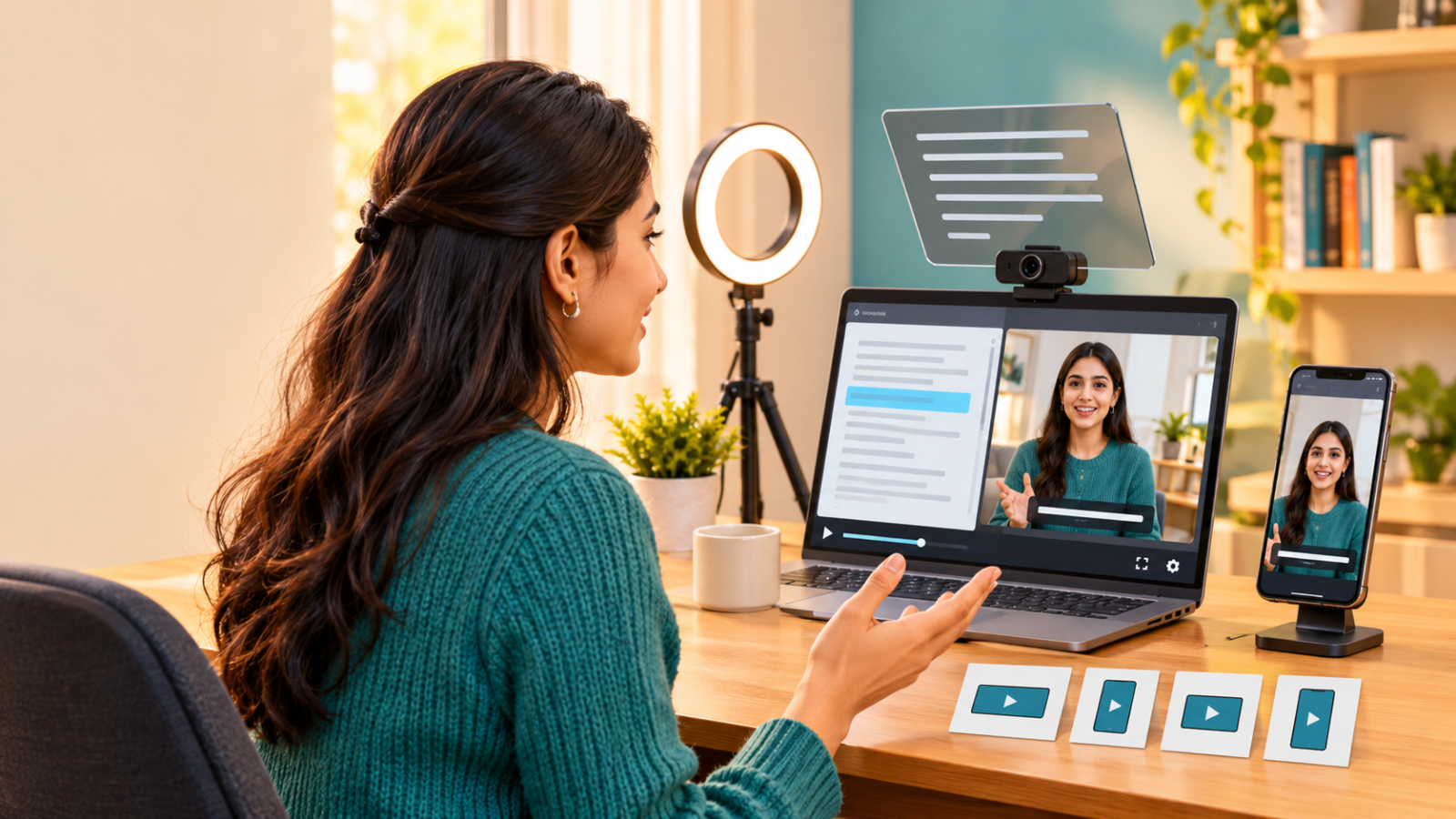
Create a clean, modern editorial illustration for an SEO article about recording video with an online teleprompter. Scene: a solo creator seated at a tidy desk, facing a laptop webcam at eye level, with soft frontal lighting from a window and a small ring light. On the laptop screen, a large readable script with a highlighted focus line scrolls beside a video preview; a semi-transparent floating teleprompter window sits near the camera. Show a simple caption bar in the preview and four small export shape icons — widescreen, vertical, square and tall portrait — arranged subtly on the desk as printed cards. Include a smartphone on a small stand showing the same reader to suggest cross-device, no-install use. Style: flat vector-meets-photo composite, warm neutral palette with teal and soft amber accents, shallow depth of field, no text overlays or brand logos, professional technology-magazine quality, 16:9 composition with clear negative space on the left for an article headline.
Alt text: A creator recording a video at a desk while reading a scrolling teleprompter script beside the webcam, with captions and multiple video export shapes illustrated nearby.
—
Internal Linking Options
These are real, plausible destinations on OutSpeaks.com drawn from the site’s navigation and sitemap. Use them to connect this article to the teleprompter tool, feature hub and supporting guides; update anchor text to match the live page titles before publication.
1. https://outspeaks.com/teleprompter/ — primary free teleprompter tool and recording entry point.
2. https://outspeaks.com/teleprompter-2/ — alternate teleprompter page for secondary tool or updated workflow content.
3. https://outspeaks.com/category/features/ — feature hub covering recording, captions, overlay and resizing.
4. https://outspeaks.com/category/guide/ — how-to guides for script writing, pacing and on-camera delivery.
5. https://outspeaks.com/blog/ — broader library of video production and marketing articles.
6. https://outspeaks.com/category/resouce/ — resources hub for supporting templates and checklists.
—
Competitor Content Comparison
This table compares this article’s subject — browser-based recording teleprompters — with five commonly discussed alternatives. Note on verification: live search-engine-result-page (SERP) rankings were not verified while drafting, and competitor feature sets change over time. The descriptions below are based on public homepages retrieved at drafting time and on widely documented product positioning; confirm every figure and claim on each vendor’s official site before publishing.
How to read this table: If your priority is recording and exporting a finished video in one place, judge tools on the recording, captions, overlay and export columns. If your priority is script writing or accessibility, the right answer may be a companion tool rather than a replacement. Because SERP positions were not verified, treat this comparison as a feature map rather than a ranking.